do you think you could do a screen recording going through the process? I might just be me getting confused about the messages but I think it would be helpful for other people as well
2 Likes
sure, although I don’t really know how to upload one on the flowlab forums so I might have to upload it on like the discord server… which I already did.
1 Like
and also speaking of:
Sorry I haven’t been updating this at all >guys<, I gotten busy… with like doing nothing (I bassicaly just got lazy). But I’m now back from the lazy hole and ready to get stuff moving again! I’m gonna start updating this again, and my new horror game which is supposed to come out this summer! (that is also a raycaster)
2 Likes
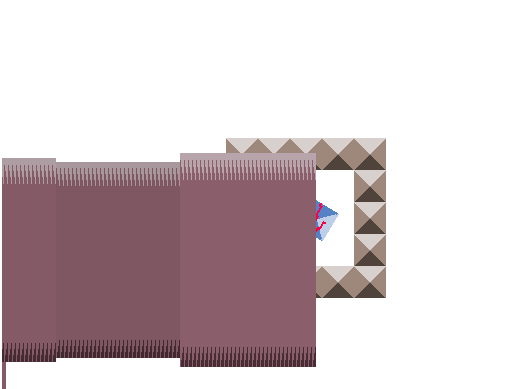
He said it would make corners better 

1 Like
New update
“Adaptive displays”
Version1.60 ([Published/Experimental])
This update is only in experimental, if theres any bugs please let me know
Thanks for waiting for this update!
I’m finally back, after a very long time, but I’m working on updates.
This update is version1.60 ([Published/Experimental])
The contents of this update is:
Bundle update:
- Added more helpful notes.
- Added footnotes. (An optional bundle, these footnotes are notes that you don’t have to read, but probably should anyways)
- Added stopped moving output in player racsting. (This output is outputted when the player stoppED moving)
- Added adaptive alpha/rotation for display. (The display alpha/rotation changes depending on the rotation of the non displayed wall)
Community bundle description update:
- Added explanation to the new outputs/inputes.
- Updated the text.
1 Like
Do you want to be pinged for updates?
- HECK NO GO AWAY I DON’T LIKE THIS BUNDLE!
- Yes.
0
voters
Disclaimer: These updates take a long time.
Oh yeah I’m gonna start a devlog on the new 3d horror game soon, after I finished the loop and contents of the game.
Its called “Away from it”
(Ps. It used to be called “It pains me” but I renamed it, don’t worry no old projects were abandon this time <: )
gawd ■■■■ this forum post died
New update
“Toggable Adaptirve Displays”
Version1.65 ([Published/Experimental])
This update is only in experimental, if theres any bugs please let me know
Thanks for waiting for this update!
Yay another update down!
This ones kinda small, QOL and a bugfix
- Added 4 new inputs. OnAdAl, OfAdRo, OnAdRo, OfAdAl
- OnAdAl: turns on adaptive alpha
- OfAdRo: Turns off adaptive Rotation
- OnAdRo: Turns on Adaptrive rotation
- OfAdAl: Turns off adaptive alpha.
- Fixed adaptive alpha not working.
Community bundle description update:
- Added explanation to the new inputs
- Updated the text.
2 Likes
I’m gonna try getting Away From It | into a dev log before July 22’d
Sorry for the BIG lack of updates, I’ve been busy. I’ll try to work on this as soon as I can.
1 Like
But right now really small update.
I added more helpful notes.
New update
Fat displays
Version 1.70 (Published)
Yes, I still update this bundle.
This one focus’s on the display, allowing you to affect the X sizing of the display, plus with a bug fix.
Update behaviors in the bundle:
- Added 3 new inputs for the display (EnXSizing, OffXSizing, XSizdiv) Check the display inputs in the description for more information.
- Added helpful notes for the 3 new inputs
- Renamed Size to YSize in the display bundle.
- Added new output: XSize (Check the display outputs in the description. for more information)
- Added bugfix where alpha does not reset to normal after turning off.
Update footnotes in the bundle:
- Added new footnotes to include the summary of the update.
- Added footnotes to the footnotes in the footnotes bundle.
- Updates the update counter from 1.00 > 1.05, instead of it being stuck at 1.00.
Update footnotes:
- This update is footnote based
-
- Added a button to let you see the visuals of the raycaster in the game: Advanced 3D Example - Flowlab Game Creator*
-
- XSizing should be 100% functional.*
-
- Alpha toggle should be 100% functional now.*
I added a experimental mode on the example game. You can press Z for the experimental mode on it. (Note: The experimental mode has bigger graphical glitches.
2 Likes
Updated Steps.
This is the updated version on how to set up the 3d engine.
- Make 3 objects (The display, the wall, the player)
- Go into the player, and put in the “3D engine(Player)4pack” bundle into it, set up the messages, and the raycast target.
- Go into the wall (the object not being displayed, and is the target) and put in the “Wall Fix/Code” bundle into it. You can delete the optional thing in there if you want to, if you don’t I’ll get how to set that up as well too.
- Go into the display, (The object that displays what is happening), and put in the “WallSize(3D)” Bundle into it.
- Go into the player bundle, and go into the spawner, and set it to the display
- Then exit out the spawner bundle, and go into the MAIN raycaster, and then do DisplayDecider.
- Go to the right of the bundle, you should see a message, make the message be sent to the display
- Customize the player bundle till it is the right numbers, and till it works.
- Go into the display sprite, and make it a vertical strips, make it the right pixels width (the PXRate)
- Go into the display code, and customize it to your liking, and to whatever it works.
- For the optional wall stopper thingy that MrSigns came up with, make another object, and make its hitboxes 35% (or whatever you want it to) bigger than the non displayed wall, than go into the non displayed wall and set the spawner as that.
- You might need a do some other jib-jab to make it work, but this is WAY easier than it looks.
- For another optional thing (which is the equation add-ons). I don’t really know how to explain, so you’ll have to ask for like screenshots for that.
- Lastly, make sure your game height/width matches the display and whatnot.
1 Like
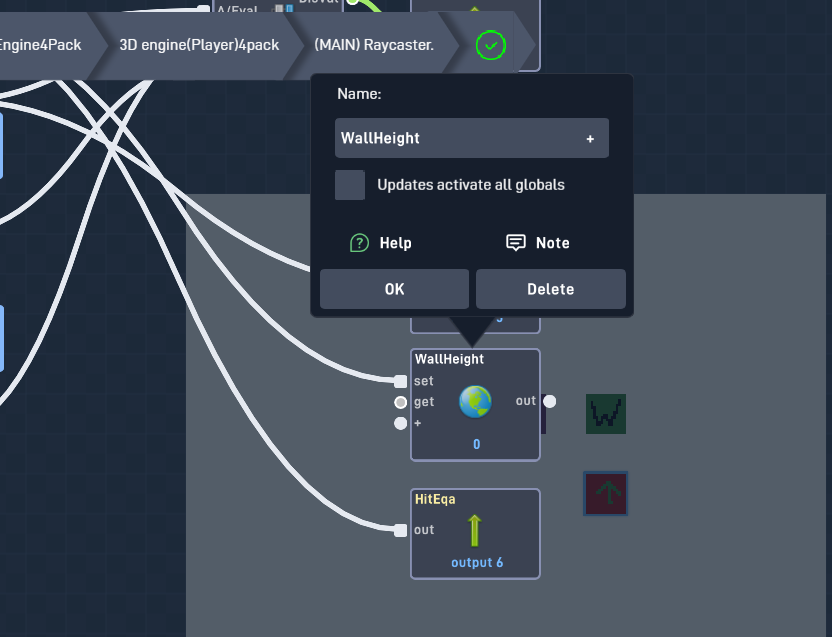
oh ■■■■
Uh I’ll go fix that the second I can do taht
1 Like
lolz. Doesnt matter is it the coolest existing bundle anyway.
The globals make up 20% of the bundle.
Without it your just getting raw 3d, without having much to make it what you want.
I’m updating the steps as of right now
Updated Steps.
This is the updated version on how to set up the 3d engine.
- Make 3 objects (The display, the wall, the player)
- Go into the player, and put in the “3D engine(Player)4pack” bundle into it, set up the messages, and the raycast target.
- Go into the wall (the object not being displayed, and is the target) and put in the “Wall Fix/Code” bundle into it. You can delete the optional thing in there if you want to, if you don’t I’ll get how to set that up as well too.
- Go into the display, (The object that displays what is happening), and put in the “WallSize(3D)” Bundle into it.
- Go into the player bundle, and go into the spawner, and set it to the display
- Then exit out the spawner bundle, and go into the MAIN raycaster, and then do DisplayDecider.
- Go to the right of the bundle, you should see a message, make the message be sent to the display
- Then exit out of the display decider and go into the Raycaster, look for all the globals in there, and make them. The helpful notes will tell you what to name them.
- Then go into “BricksEquationButMoreIg” bundle, and go down till you find 2 more globals, make new globals for them, the helpful notes will tell you what to name them.
- Exit out of the player then head to the display, go into the “WallSize(3d)” bundle.
- At the top left should be a global, set it as Rotation Display, DON’T MAKE ONE, SET IT.
- Go into the display sprite, and make it a vertical strips, make it the right pixels width (the PXRate). For example: 2 px rate = 2px width vertical strips.
- Then exit out of the spawner bundle, than to “(MAIN) Raycaster”, then to “Raycast”. There you should see a number labeled as “Starting Raycast Angle”. Usually at 140 (which is mostly correct if you’re using the OOTB set up). But if you done anything different with the bundle, like changing FOV/PxRate/wallCount, you might need to change it.
- Go into the display code, and customize it to your liking, and to whatever it works.
- For the optional wall stopper thingy that MrSigns came up with, make another object, and make its hitboxes 35% (or whatever you want it to) bigger than the non displayed wall, than go into the non displayed wall and set the spawner as that.
- You might need a do some other jib-jab to make it work, but this is WAY easier than it looks.
- For another optional thing (which is the equation add-ons). I don’t really know how to explain, so you’ll have to ask for like screenshots for that.
- Lastly, make sure your game height/width matches the display and whatnot.