Me and a team of people are working on a few games right now. One of which is a recreation of FNAF 1 for Flowlab. However, one issue that I have been ignoring has been inreasing in severity behind the scenes as we develop. I’ve known about this issue ever since I first coded in the ability to do this but I’m not quite sure how to fix it and it’s bad now.
So basically, I have two invisible UI objects. When your mouse hovers over the one on the left, the camera moves left. Same with the one on the right side where it moves right. However, if you stay on the very far end of one of the sides for too long, it temporarily locks your camera movement back the other way (The amount of time it locks you there is scaled with the amount of time you stay idle on a far side). At first, I didn’t think it would be much of an issue, but I never accounted ror the fact until now that players will need to pull their cameras up; forcing them into an idle state. This makes it so they’re essentially spawn-locked from being able to defend themselves against the oncoming threats due to the player’s vision being temporarily paralyzed.
I know I just explained a lot but I don’t think it’s too complex of an issue. I just don’t have much time to try to figure it (due to me working on other parts of the project) out so idk how bad it is. If anyone wants to try to figure this out, the link for testing and examining the code is right here: Five Nights at Freddy's 1 Remake (In Development) - Flowlab Game Creator
Edit: Ignore the music in the “Night 1” Level. @CoDer added that in as a joke and I just kept it for now
im trying to make it feel as close to the original game as possible in terms of camera movement (and also allow the player to boop Freddy’s nose), but I’ll resort to this if no other solutions come up. Thanks, though.
i’m not sure. I attached the code so u can look at it urself. the camera controls are attached to the two black rectangles in the ui layer that become invis when u start and the black square in the game layer labelled “Camera Controls”.
Although, if I had to guess, I think it’s because it’s able to slightly bypass the camera move limit for some reason, but I’m not sure.
@JR01 srry to notify u if ur busy but this is becoming a big problem in my game and idk how to fix it too. thing is, its such a simple problem and probably has an easy solution, but idk how to fix it. read above post and responses for details on the issue. (btw I check this forum every day so I’ll always respond within 24 hours)
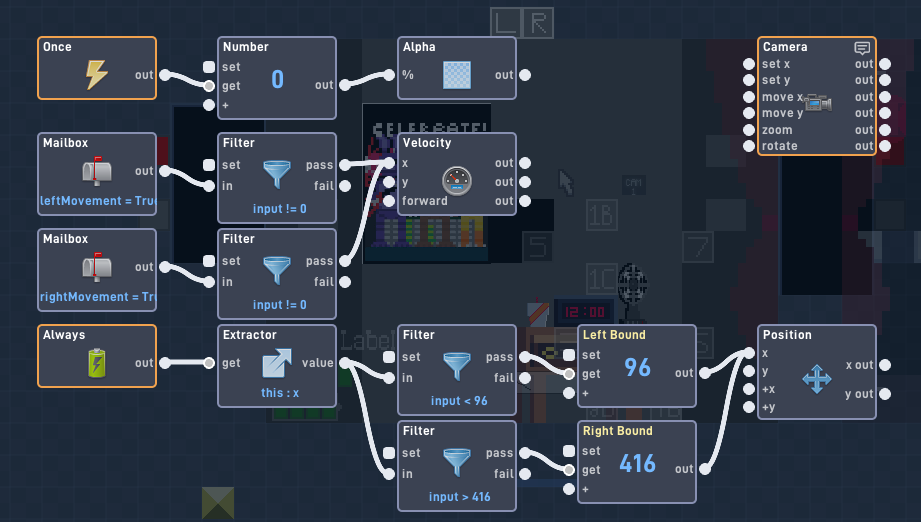
The problem is the camera object is still moving with velocity even the camera has stopped because the auto camera. You can see this if you use an extractor set to X or remove the link that makes the object invisible. You just need to stop the object from moving right by using a filter and a position behaviors.
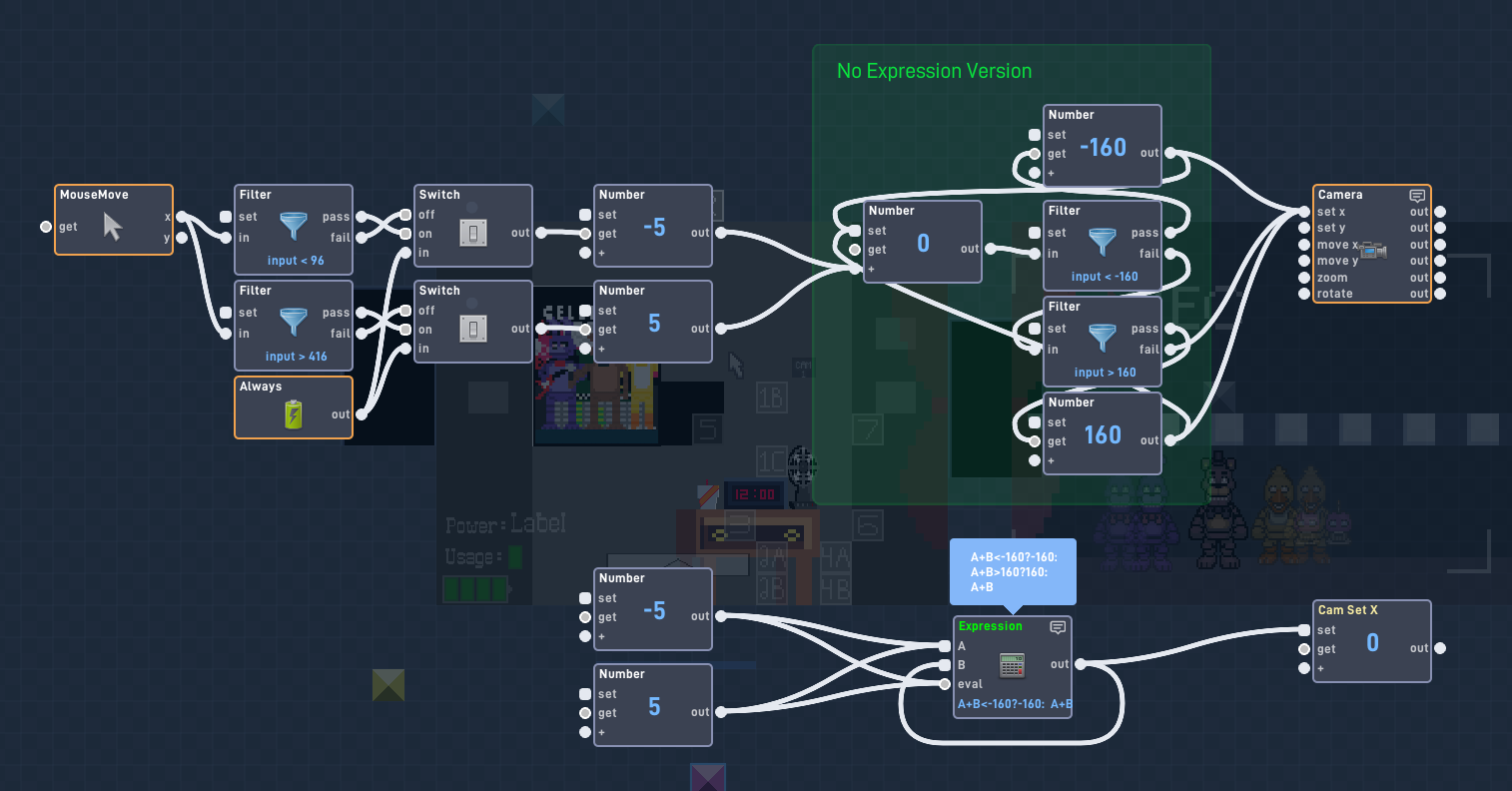
Here is a code version if you ever need to remove the UI objects for mouse interactions and still be able to move the camera left and right. If you use this version of code, make sure to turn off the auto camera checkbox.
thanks. Im going to test this in a seperate game template first to test it but just wondering, how would this work properly? im not doubting that it will. im just trying to learn a little more on this website and knowing would help (although I may figure it out as I’m replicating it)
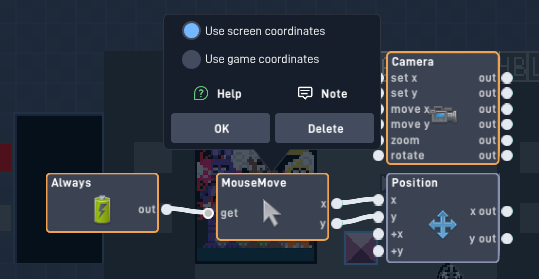
Mousemove (set to UI) will give you the mouse position relative to the screen. You mouse over objects are about 3 blocks wide, so this will move the camera when the mouse is less than 96 pixels or greater 416 pixels on the screen (the game is 16 blocks wide or 16 x 32 = 512 pixels wide, and 512 - 96 = 416). The expression and the filters with the green area work the same, it just checks if the value is over or under a filter, if so then output the limit and reset the value to the limit.
The camera has 2 modes, autocamera on or off. With autocam, the camera will follow the object until it reaches the bounds set in the camera. The object can move outside of this area, but the autocamera will stay in the bounds. With autocamera off, you are manually moving the topleft corner of the screen (0,0). Manually moving the camera is much easier if you just need to shift the camera, but autocamera is better if you need to follow an object like for a platformer. Manual camera has a lot more potintial but needs a lot of practice and testing for more advance camera movements and controls.
Expressions can handle a little bit of Haxe, so its easier to do nested filters and advance math, rather than do it from a lot of number blocks and filters. The blue note above the block of what is used inside of the expression.